 Keet Support
Contact Indicators 🛡️
Keet labels the people you talk to based on your Contact Book, so you can spot impersonators and fake accounts in public rooms and large groups at a glance.
Anyone can change their display name or avatar at any time, which bad actors could use to impersonate trusted people and run phishing or impersonation scams in public groups. To help you tell real connections from spoofed ones, Keet shows a relationship label next to a member's name based on your Contact Book.
What the labels mean
Keet shows one of four labels, depending on your relationship to the member:
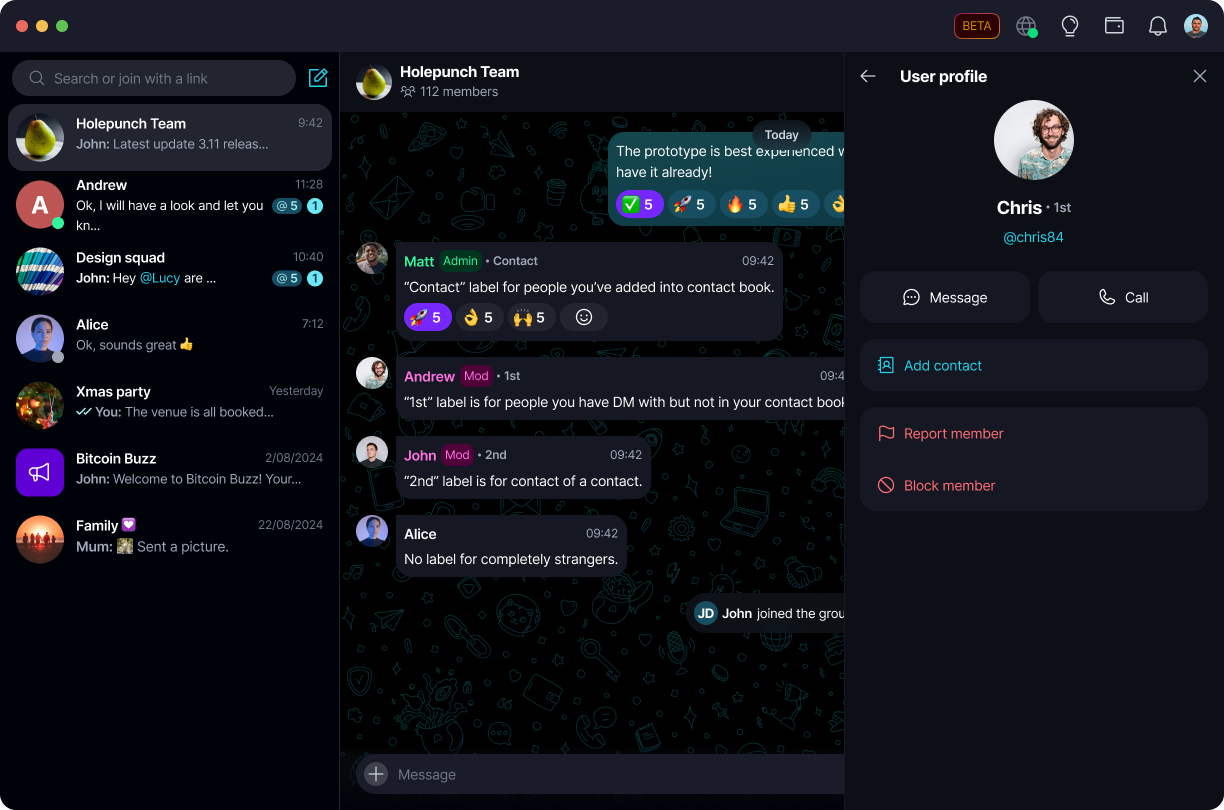
- Contact - this person is saved in your Contact Book
- 1st - you have a DM with this person, but they are not saved in your Contact Book
- 2nd - this person is a contact of one of your contacts
- No label - you have no connection to this person; treat them as an unverified stranger
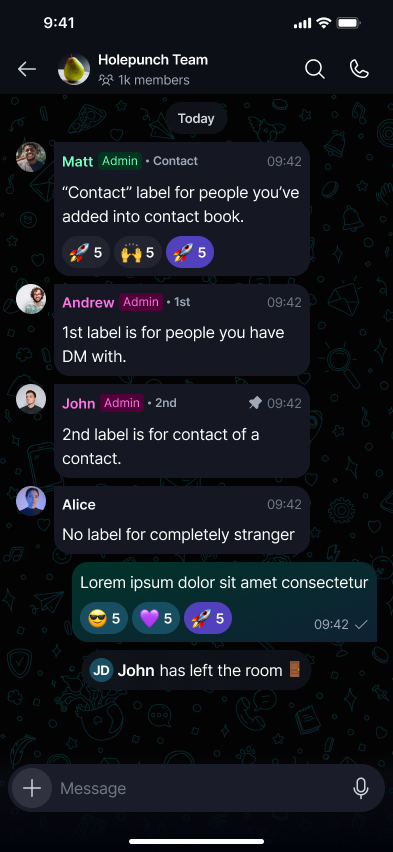
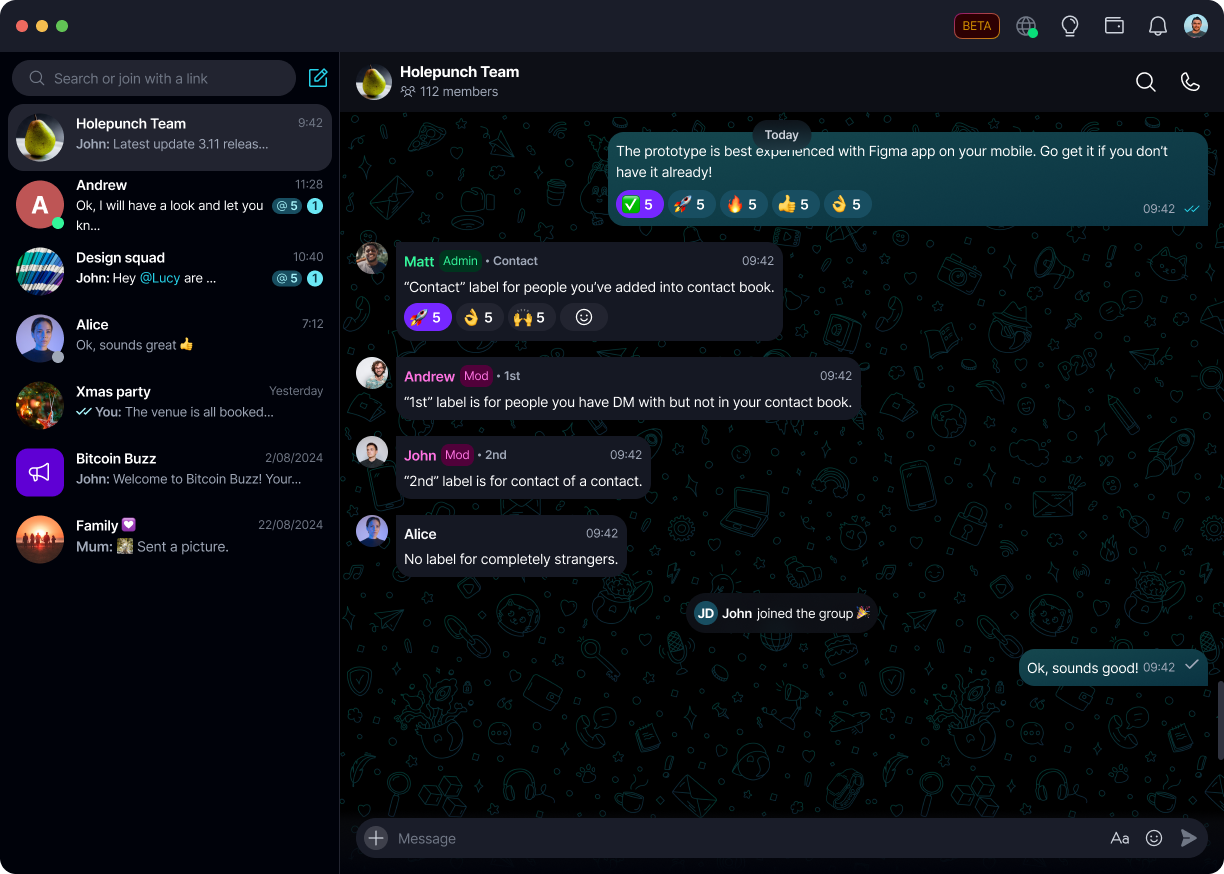
These labels only appear in public rooms and DM requests, where you are more likely to run into people you don't already know.
Where you'll see a label
Next to a name in the member list
In a public room or large group, tap or click a member's avatar or name to see their label right away, before you even open their profile card.
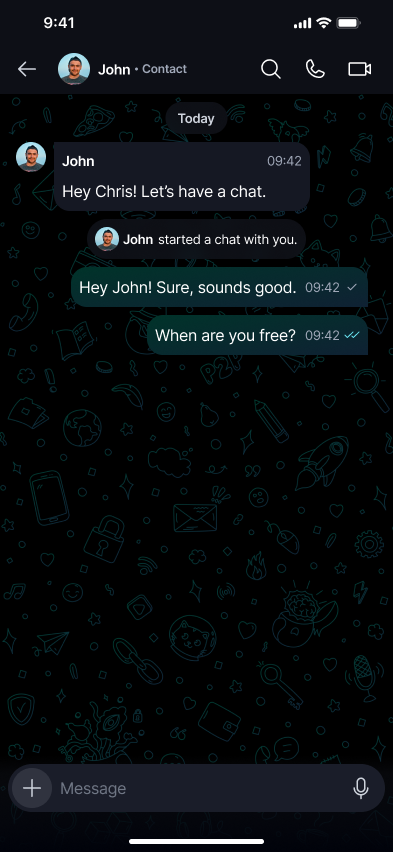
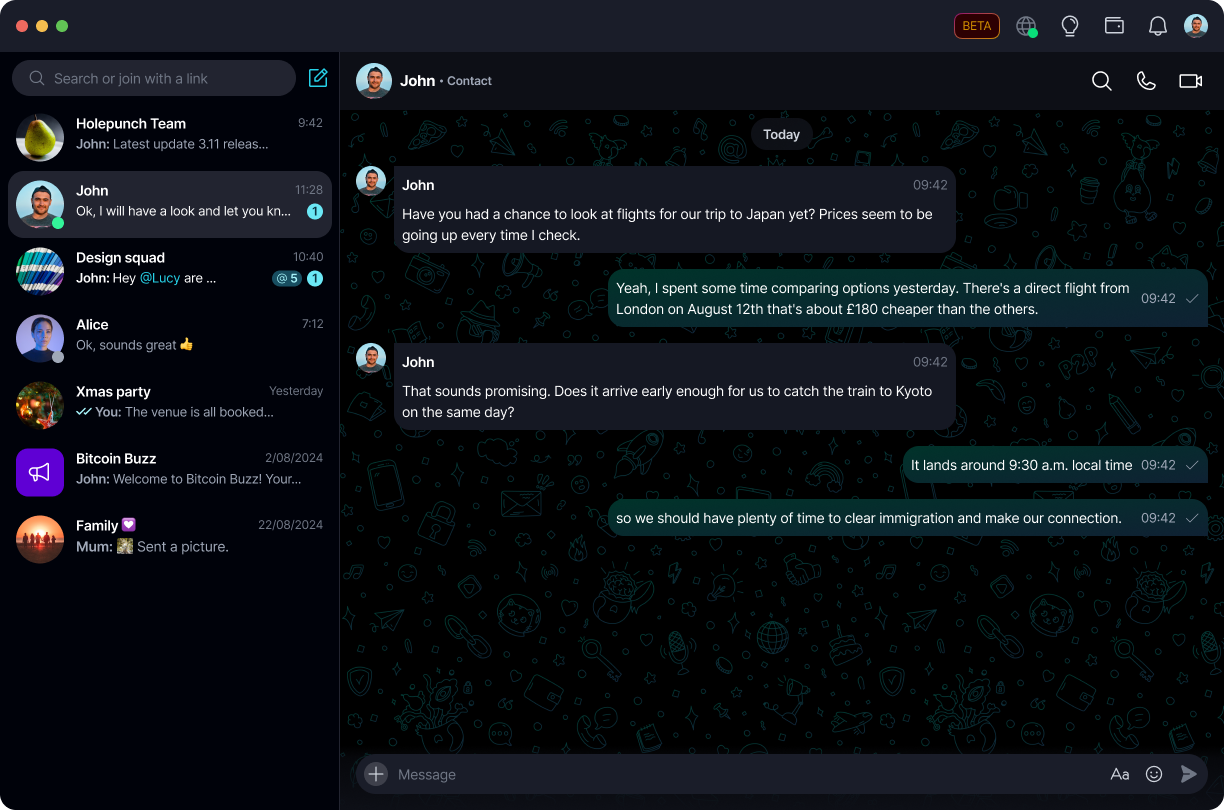
In a DM chat
If you already have a saved contact who has started a chat with you, their label appears next to their name in the chat header.
On the profile card
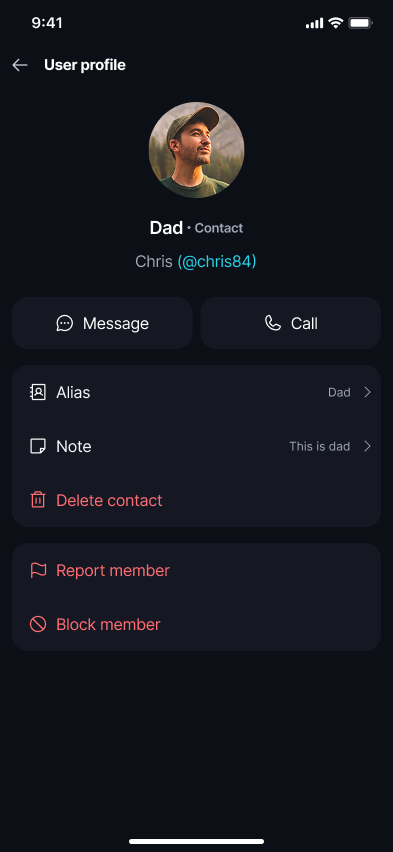
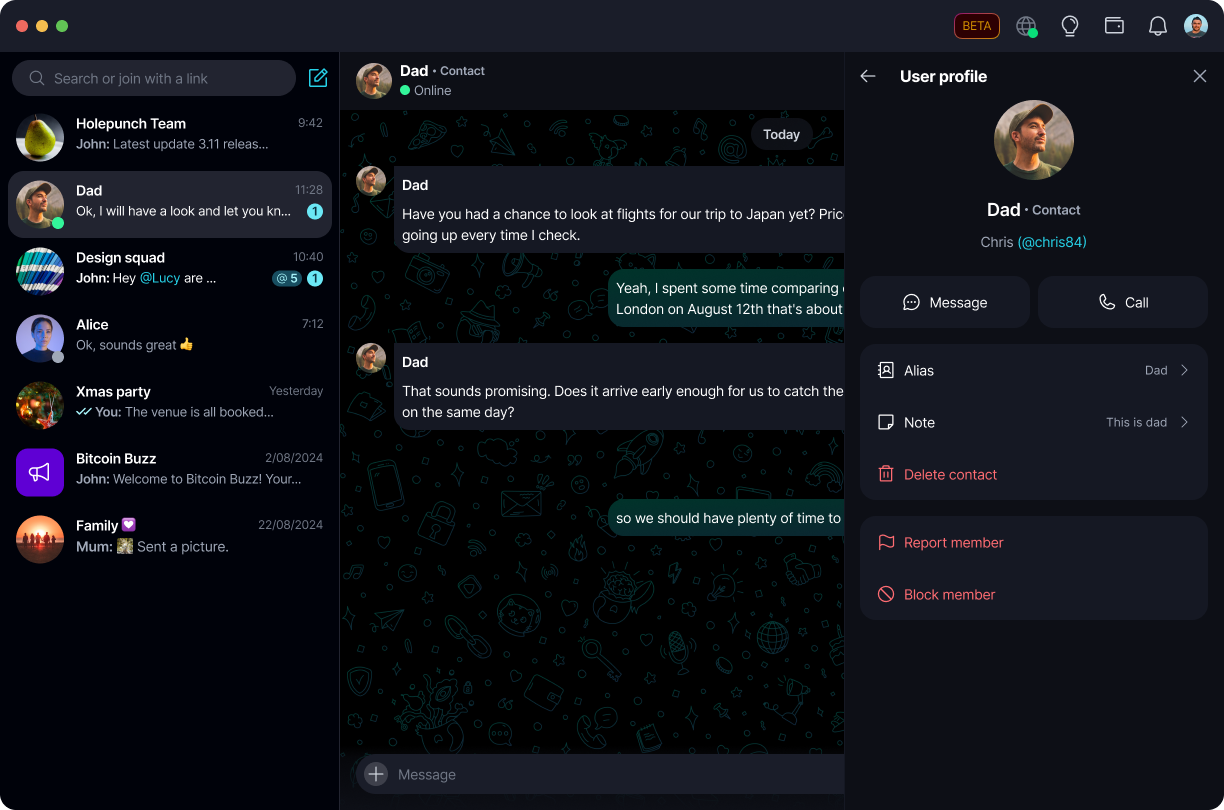
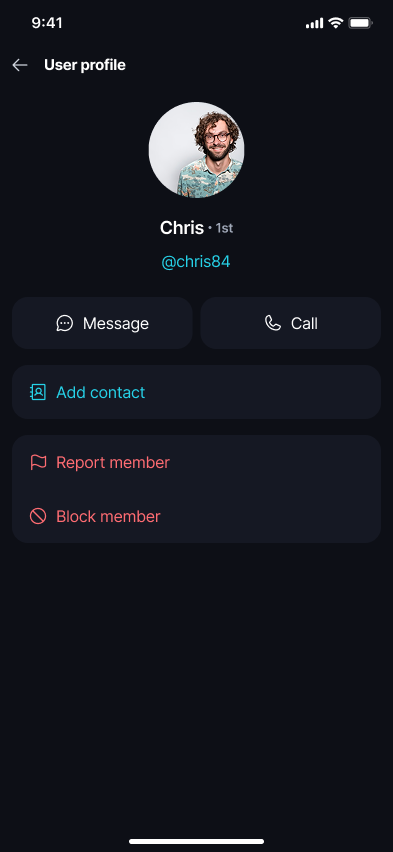
Tap or click on a member's avatar or username to open their profile card. Their label appears next to their name at the top.
If the person is already a saved contact, the card also shows the alias and note you saved for them, along with the option to delete the contact.
If they are not a saved contact, the card shows their public username and an 'Add contact' option instead, so you can save them once you've confirmed their identity.
In DM requests
When someone outside your contacts sends you a DM request, Keet shows a notification you can review before replying.
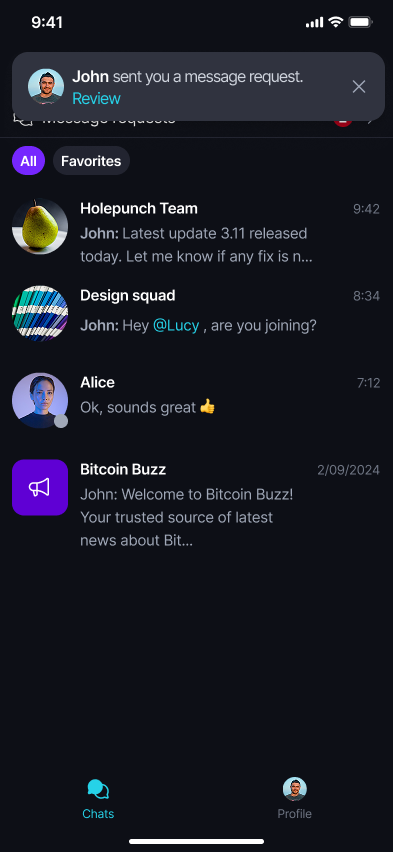
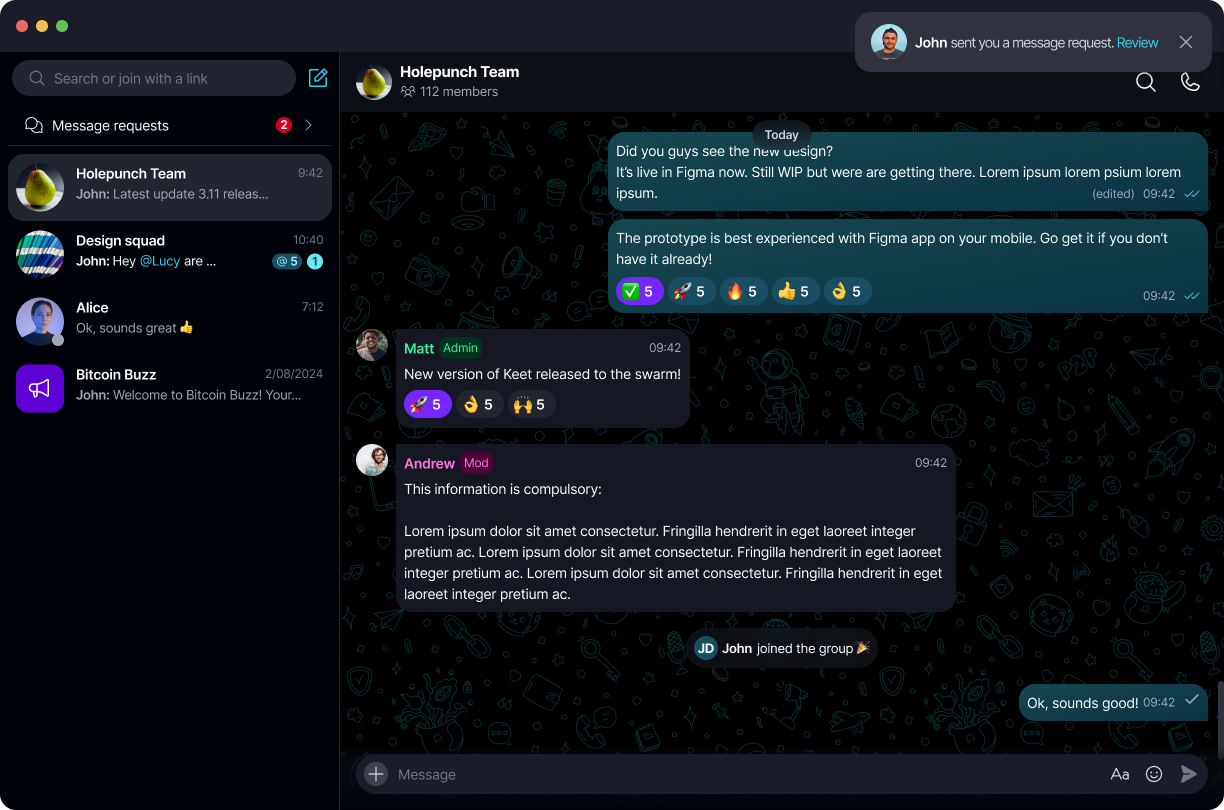
Opening the request shows the sender's label in the chat header, and if they're already a saved contact, the accept prompt confirms they're a peer from your Contact Book before you accept.
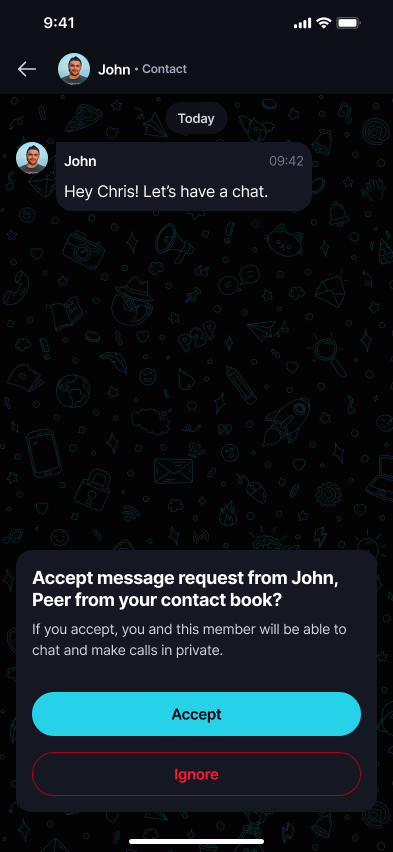
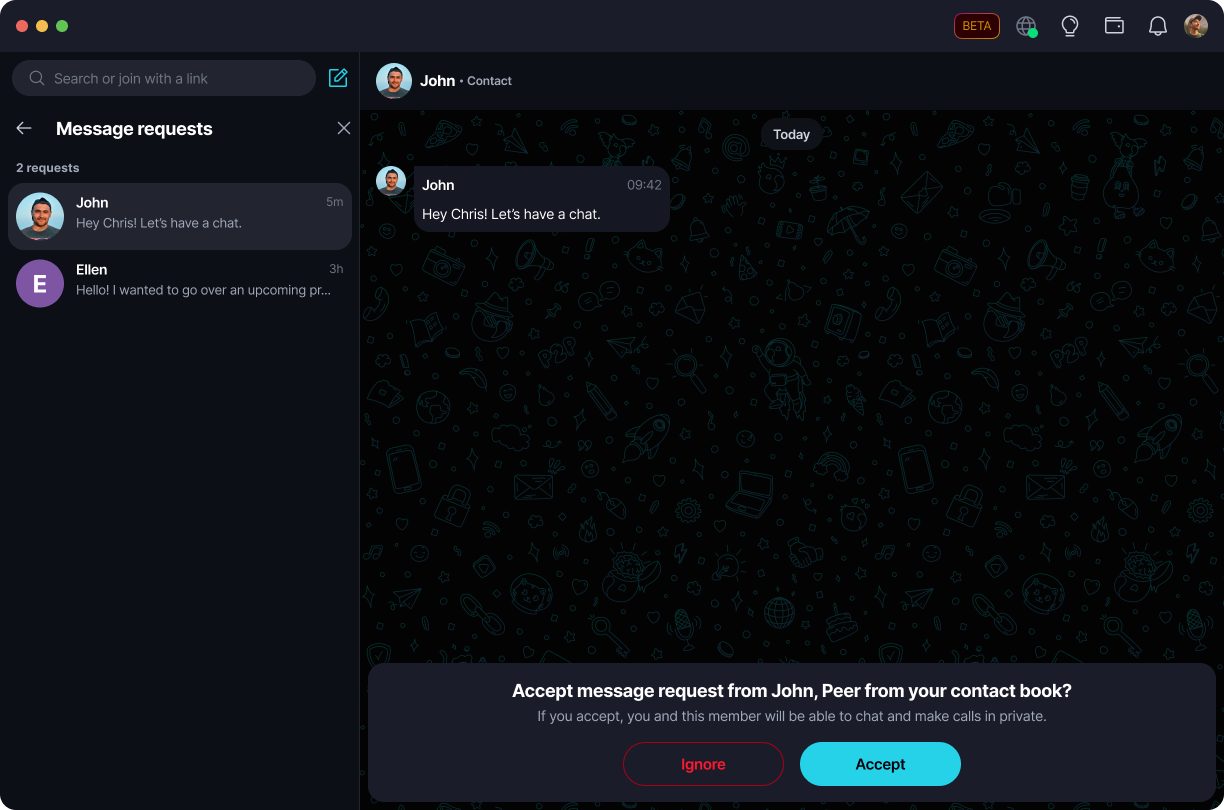
A matching name or avatar is not proof of identity. Always check the label and, when in doubt, verify the person's @username before trusting a message from a public room.